Map Metra connector
Use Map Metra with Claude and ChatGPT
Connect your Claude or ChatGPT account to Map Metra and run a job from a chat — set up the project, import and calibrate the plans, measure the takeoff, build the BOQ and estimate with your own rates, programme the works and draft the tender. Everything is saved straight to your Map Metra project, where you can check and edit it.
What you need
- A Map Metra account on a plan that includes projects (Takeoff or higher, or a free trial).
- A Claude or ChatGPT plan that lets you add connectors or apps.
Connect it
Claude: find Map Metra in Claude's connector directory, or go to Settings → Connectors → Add custom connector and enter https://www.mapmetra.com/api/mcp.
ChatGPT: find Map Metra in ChatGPT's app directory, or add it as a connector with the same address.
Then sign in to Map Metra when asked, choose which projects the assistant may use, and allow it to make changes if you want it to do work rather than only read. Start a new chat after connecting so the assistant loads Map Metra's tools.
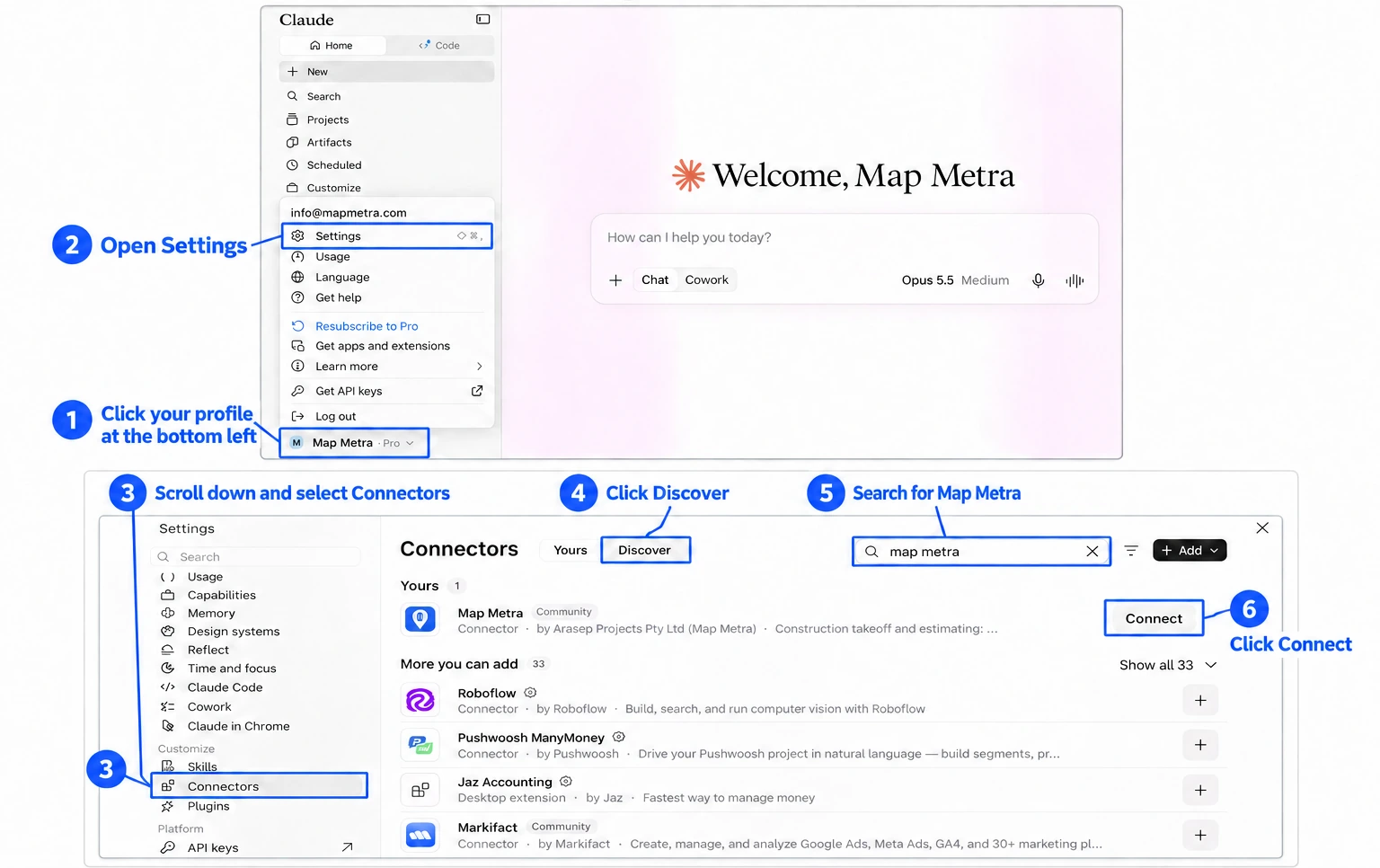
Tap the image to open it full size.
How changes are saved
Once connected, the assistant works without stopping for approvals. Everything it does — creating a project, importing a plan, calibrating a page, a measurement, a new estimate row, a rate, tender wording — is saved straight to your Map Metra project, and it tells you what it saved. Related changes can be saved together as one change set, all or nothing.
Everything stays editable: open the project in Map Metra to check measurements on the drawing, adjust or delete anything, and change rates or wording. Each change the assistant makes is recorded.
Quantities are calculated by Map Metra's own geometry engine and prices by its pricing engine, not by the AI. Review the result before you rely on it or send a tender.
What it can do
Projects
- List projects — The projects you allowed this connection to use.
- Create project — A new project from a name and site address.
- Read project tab — Saved rows and quantities on any tab.
- Read project results — Estimate totals with review, export and download links (sign-in required).
- Show connected account — Which Map Metra account and projects the connection uses.
Plans and takeoff
- List drawings · Read drawing — Plan files, pages, sheet numbers and scales.
- List shared folder — Every PDF in a Google Drive folder shared as “Anyone with the link”, including subfolders such as Architectural and Structural.
- Import plan — Import a plan PDF (up to 40 MB) from a Google Drive folder or file link, a Dropbox link, a direct download link, or a small file; optional scale and paper size.
- Start · Upload chunk · Finish upload — Send a plan you attached in the chat (up to 10 MB) in checked pieces.
- Calibrate page — Set a page scale from two points a known distance apart.
- Inspect drawing · Read drawing vectors — Look at a page or region, and read its lines, shapes and text.
- Read takeoffs · Measure on drawing — Read saved measurements; measure a new area, length, perimeter or count.
BOQ, estimate, programme and tender
- Read estimate · Search rates library · Read rate — Saved pricing and your RateBuild cost codes.
- List edit operations · Edit project — Add or change BOQ, WBS, estimate and programme rows, set rates, and draft tender text.
- Read tender — The current draft tender.
- Export file — Download the BOQ or estimate as Excel or PDF, the tender as PDF or Word, the program or the marked-up drawings as PDF; the link lasts 7 days.
- Read change — The saved result of a change.
- Begin · Save · Read change set · Remove change — Save a group of related changes together, all or nothing; fix one change without starting again.
Things to ask
- “Create a project for 12 Smith St, Redfern and import the plans from this Google Drive link. The sheets are 1:50 at A3.”
- “On CD102, measure the Bathroom 2 floor and wall tiling, then price tile supply and tiling labour as separate lines from my rates.”
- “Build a programme for the bathroom works from the estimate.”
- “Add an exclusions section to the tender and change the validity to 60 days.”
Good to know
- Share links must be set to “Anyone with the link can view”. Plan PDFs up to 40 MB from a link (up to 10 MB sent from the chat). For a whole drawing set, share the Google Drive folder: the assistant can list it and import each plan.
- OneDrive and SharePoint links: Microsoft no longer allows most shared files to be downloaded without signing in, so these usually can't be imported yet. Upload the PDF in Map Metra instead, or share it from Google Drive or Dropbox.
- The assistant works while your chat is open; it does not keep working in the background.
- It never sends or publishes a tender, and it does not use your Map Metra AI credits.
Disconnect and privacy
Disconnect at any time from the ChatGPT and Claude icons in Map Metra's top bar; access ends immediately. Read how connector data is handled in our Privacy Policy.
Support
Questions or problems: info@mapmetra.com or our contact page.